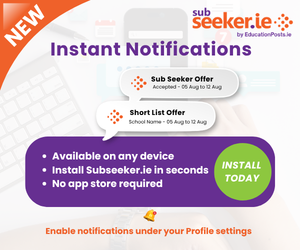
General - How do I install SubSeeker.ie on my device?
Install on iPhone & iPad Safari
- Open Subseeker.ie in Safari
- Tap the Share button
- Scroll down and tap Add to Home Screen
- The Subseeker.ie app will now appear on your Home Screen like any other app
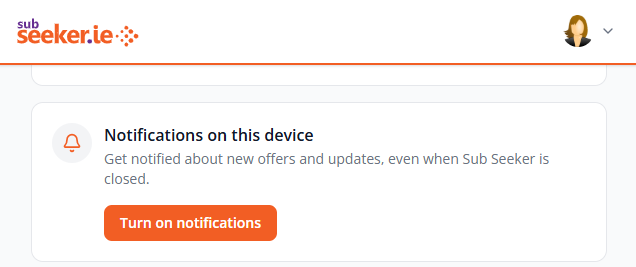
- On the app, click your profile in the top right corner, click Settings and Turn on notifications
Install on Android Chrome
- Open Subseeker.ie in Chrome
- Tap the Install App prompt if it appears
- If you don't see it, tap the (three dots) menu
- Select 'Install app', 'Install and create shortcut' or 'Add to Home screen'
- The Subseeker.ie app will now be available from your Home Screen and App Drawer
- On the app, click your profile in the top right corner, click Settings and Turn on notifications
Install on Windows (Chrome or Microsoft Edge)
Chrome
- Open Subseeker.ie
- Click the Install icon in the address bar (or open the menu)
- Select Install
- On the app, click your profile in the top right corner, click Settings and Turn on notifications
Microsoft Edge
- Open Subseeker.ie
- Click the App available (Install) icon in the address bar
- Choose Apps → Install this site as an app. Click Install
- On the app, click your profile in the top right corner, click Settings and Turn on notifications
Install on macOS
Chrome
- Open Subseeker.ie in Chrome
- Click the Install icon in the address bar
- Click Install
- On the app, click your profile in the top right corner, click Settings and Turn on notifications
Microsoft Edge
- Open Subseeker.ie in Edge.
- Click the ... menu. Select Apps → Install this site as an app
- The Subseeker.ie app can be launched just like any other application
- On the app, click your profile in the top right corner, click Settings and Turn on notifications
Related Entries: